
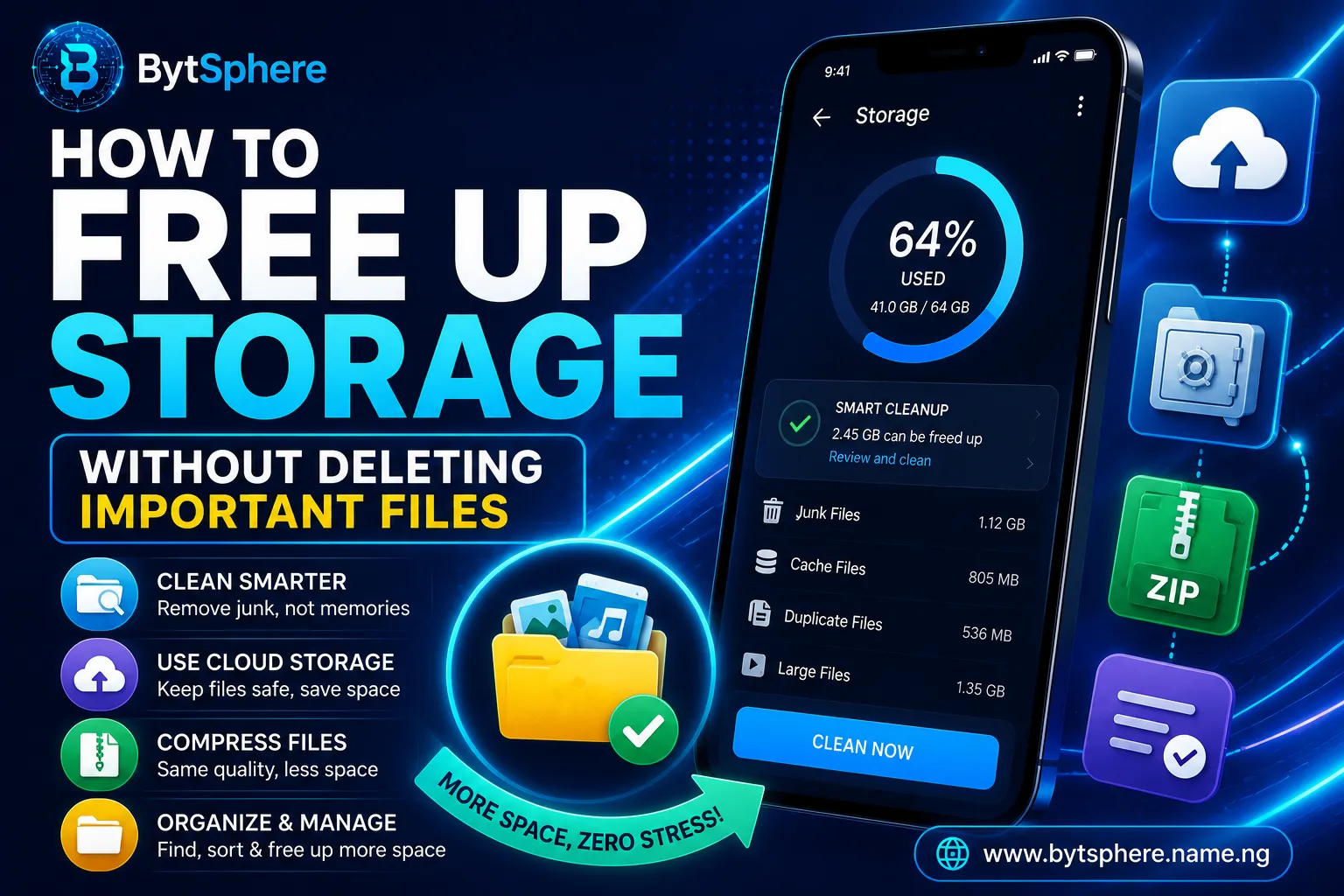
You know the feeling. You try to take a photo and your phone says "Storage Full." You want to download an app but there's no space. You're trying to update WhatsApp and it won't budge. And yet — you don't want to delete your photos, your videos, or your important files.
📋 Table of Contents
- Why Your Phone Keeps Running Out of Storage
- Step 1: Check What Is Using Your Storage
- Step 2: Clean Up WhatsApp Media
- Step 3: Clear App Cache
- Step 4: Back Up Photos to Google Photos
- Step 5: Delete Your Downloads Folder
- Step 6: Use Files by Google
- Step 7: Uninstall Unused Apps
- Step 8: Clear Telegram Cache
- Step 9: Move Files to an SD Card
- Step 10: Use Google Drive for Documents
- Frequently Asked Questions
The good news is you don't have to. Most Nigerians have gigabytes of wasted space on their Tecno, Infinix, Samsung, or any Android phone — sitting in WhatsApp folders, app caches, duplicate photos, and forgotten downloads — that can be cleared safely without losing a single important file.
Follow these 10 steps in order and you could recover 5–15GB of space in under 30 minutes — without deleting a single thing that matters to you.
Why Your Phone Keeps Running Out of Storage
Before we fix the problem, it helps to understand what's causing it. Android phone storage fills up from four main sources:
- WhatsApp, Telegram & social media downloads — every photo, video, voice note, and document sent to you in WhatsApp groups is automatically saved to your phone. Nigerian WhatsApp groups are notoriously active — this alone can eat 5–15GB over time
- App cache buildup — every app stores temporary files to load faster. Chrome, Instagram, TikTok, and YouTube can accumulate gigabytes of cached data that serve no real purpose after a few days
- Duplicate and blurry photos — your camera app may save multiple shots from burst mode, screenshots pile up, and memes received on WhatsApp fill your gallery silently
- Forgotten downloads — PDFs, APK files, documents received via email or browser, and app installation files that were never deleted after use
Step 1: Check What Is Using Your Storage
Before doing anything, always check your storage breakdown first. This tells you exactly where your gigabytes are going so you can prioritise what to tackle first.
- Go to Settings → Storage
- Wait for your phone to scan and show a breakdown by category — Apps, Images, Videos, Audio, Documents, Other
- Note which category is using the most space — this is where you start
- Tap any category to see the specific files or apps using that space
Step 2: Clean Up WhatsApp Media (The Biggest Win)
For most Nigerian phone users, cleaning up WhatsApp alone will recover more storage than everything else combined. WhatsApp automatically saves every photo, video, voice note, GIF, and document sent to you — including all the random forwards from your family and church groups.
Method A — From Inside WhatsApp:
- Open WhatsApp → Settings → Storage and Data → Manage Storage
- You'll see a list of chats ranked by how much storage they're using
- Tap any chat to review and delete large files — videos, documents, and forwarded media are usually the biggest culprits
- Use the "Large Files" and "Forwarded Many Times" filters to quickly identify files worth deleting
Method B — From Your File Manager:
- Open your File Manager app
- Navigate to Internal Storage → WhatsApp → Media
- Open each folder — WhatsApp Images, WhatsApp Video, WhatsApp Documents, WhatsApp Audio
- Select and delete files you don't need — especially WhatsApp Video which is almost always the largest folder
Step 3: Clear App Cache — Safe, Fast, and Free
App cache is one of the easiest wins when it comes to freeing up storage. Every app on your phone — Chrome, Instagram, TikTok, YouTube, Facebook, your banking apps — stores temporary files to load faster. These files serve no long-term purpose and clearing them is completely safe. You won't lose any passwords, settings, or personal data.
- Go to Settings → Apps
- Tap on an app — start with the ones you use most (Chrome, Instagram, TikTok, Facebook, YouTube)
- Tap Storage → Clear Cache
- Repeat for each heavy app
- Completely safe — clears temporary files only, never your personal data
- Apps may open slightly slower the first time after clearing cache — this is normal and temporary
- Can free up 1–5GB depending on how long since you last cleared cache
- Should be done monthly as part of regular phone maintenance
Step 4: Back Up Your Photos to Google Photos — Then Delete Local Copies
This is the smartest way to keep all your photos forever while freeing up gigabytes of phone storage at the same time. Google Photos backs up every photo and video to the cloud for free, so you can safely delete the local copies from your phone without ever losing a single memory.
- Download and open the Google Photos app (it's free on Play Store)
- Sign in with your Google account
- Tap your profile photo → Photos Settings → Backup → toggle Backup ON
- Set quality to "Storage Saver" for unlimited free storage, or "Original Quality" if you want full resolution (counts against your 15GB free Google storage)
- Wait for all your photos to finish backing up — connect to Wi-Fi first to avoid using mobile data
- Once backup is complete, tap your profile → "Free up space" — Google Photos will safely delete all backed-up photos from your phone
Step 5: Delete Your Downloads Folder
The Downloads folder is one of the most neglected places on any Android phone — and usually one of the messiest. APK files used to install apps, PDFs downloaded from browsers, documents received via email, and random files downloaded months ago all pile up here silently.
- Open your File Manager app
- Navigate to Downloads
- Sort by Size (largest first) to quickly identify the biggest files
- Review each file — APK installers, old PDFs, and random documents you no longer need can be deleted safely
- Select multiple files at once using long-press → Select All → Delete
Step 6: Use Files by Google — The Best Free Storage Cleaner
Files by Google is a free app from Google that acts as an intelligent storage manager for your Android phone. It automatically identifies junk files, duplicate photos, large files, memes received on WhatsApp, and unused apps — and presents them for easy deletion with just a few taps.
- Download Files by Google from the Play Store (free)
- Open the app and tap Clean from the bottom navigation
- The app will show you a breakdown: Junk Files, Duplicate Photos, Large Files, Unused Apps, Memes
- Tap each category → review → Select files → Delete
- Pay special attention to the "Duplicate Photos" section — burst mode photos and accidental duplicates are very common
Step 7: Uninstall Apps You Haven't Used in Months
Most people have apps they downloaded once and never opened again — games installed for a journey, apps downloaded to try something, or apps that came pre-installed on the phone. Each one takes up space, and many run background processes that slow your phone and drain your battery even when you're not using them.
- Go to Settings → Apps
- Tap the Sort option and select "Size" to see your largest apps first
- Go through the list and ask yourself: "Have I used this app in the last 3 months?" If no, uninstall it
- To uninstall: tap the app → Uninstall → OK
- Common apps taking up space unnecessarily: old games, shopping apps used once, duplicate music players, VPN apps no longer in use, third-party cleaner apps that ironically take up more space than they save
Step 8: Clear Telegram Cache
If you use Telegram, you may be surprised how much storage it consumes. Telegram automatically downloads photos, videos, and documents from all your groups and channels — and stores them locally. For Nigerians in multiple Telegram channels and groups, this can easily accumulate several gigabytes.
- Open Telegram → Settings → Data and Storage
- Scroll down and tap "Storage Usage"
- You'll see a breakdown by chat showing exactly how much each group or contact is using
- Tap "Clear Telegram Cache" at the top to remove all cached data instantly
- For more control, tap individual chats and delete specific media types — keep what matters, delete the rest
Step 9: Move Files to an SD Card
If your Tecno or Infinix phone has a microSD card slot — and most mid-range Nigerian Android phones do — using an SD card is one of the easiest long-term solutions to storage problems. You can move photos, videos, music, and even some apps to the SD card, freeing up your internal storage for the things that must stay there.
- Insert a microSD card into your phone's SIM tray slot (usually labelled "MicroSD")
- Go to Settings → Storage — your phone will detect the SD card
- Tap "Transfer Data to SD Card" or use File Manager to manually move large folders (WhatsApp Media, Downloads, Videos) to the SD card
- To move photos automatically, open Camera app → Settings → Storage Location and select SD Card — all future photos will save directly to the SD card
Step 10: Move Documents to Google Drive
PDFs, Word documents, Excel files, presentations, and other documents don't belong on your phone's internal storage. Google Drive gives every Nigerian with a Google account 15GB of free cloud storage — use it to store all your important documents safely in the cloud and delete the local copies from your phone.
- Open the Google Drive app (pre-installed on most Android phones, or download free from Play Store)
- Tap the + button → Upload
- Select your documents from your Downloads folder or File Manager
- Once uploaded, delete the local copies from your phone — they're safely stored in Drive
- Access your documents anytime at drive.google.com or through the Google Drive app
Final Thoughts
Running out of storage doesn't mean you need a new phone. It usually means your existing storage is being wasted on things that don't matter — WhatsApp group videos, forgotten APK files, gigabytes of app cache, and duplicate photos collecting dust in your gallery.
Follow these 10 steps in order — starting with WhatsApp cleanup and cache clearing — and most Nigerian users will recover 5–15GB of storage within 30 minutes, without deleting a single important file.
Make it a habit to run through steps 3, 5, and 6 once a month. Your phone will stay fast, your storage will stay healthy, and you'll never see that dreaded "Storage Full" message at the worst possible moment again.
How much storage did you recover? Drop a comment below and let us know which step freed up the most space for you!
Found this helpful? Share it with someone whose phone is always full — and subscribe to BytSphere for more daily tech tips made for Nigerians.
Frequently Asked Questions
Will clearing app cache delete my passwords or personal data?
No. Clearing app cache only removes temporary files the app uses to load faster — things like thumbnail previews, temporary session data, and downloaded content previews. Your passwords, account login details, personal settings, and saved data are stored separately and will not be affected. After clearing cache, the app may open slightly slower the first time as it rebuilds its cache, but everything else stays exactly as it was.
If I delete photos from my phone after backing up to Google Photos, will I lose them?
No — as long as the backup is complete. Once Google Photos confirms your photos are backed up (you'll see a checkmark or "Backup complete" message), deleting them from your phone removes only the local copy. The photos remain permanently in Google Photos and can be accessed from any device at any time by signing into the same Google account. Before deleting anything, always wait for the backup to fully complete and verify it by opening Google Photos and checking that your recent photos appear there.
What is the fastest way to free up storage on a Tecno or Infinix phone?
The fastest combination for Nigerian Android users is: (1) Open WhatsApp → Settings → Storage and Data → Manage Storage and delete large video files from group chats, (2) Go to Settings → Storage → Free Up Space and let the phone automatically identify junk, and (3) Use Files by Google's Clean feature to delete duplicate photos and junk files. These three steps together typically recover 3–10GB in under 15 minutes for most Nigerian users.
How much does a good SD card cost in Nigeria and where should I buy one?
A genuine SanDisk or Samsung microSD card costs approximately ₦12,000 – ₦20,000 for 128GB and ₦20,000 – ₦35,000 for 256GB from reputable sellers. Always buy from SLOT Nigeria, verified Jumia sellers, or Konga — fake SD cards are extremely common in open markets and Computer Village. Fake cards often show incorrect storage capacity and will corrupt your files. A genuine SanDisk 128GB is the best value for most Nigerian users and will last 5+ years with normal use.
Does my Tecno or Infinix phone have an SD card slot?
Most Tecno and Infinix phones in the budget and mid-range category do support microSD cards — including the Spark series, Hot series, and most Note series phones. To confirm, check your phone's SIM tray (usually on the side of the phone) — if it has three slots, one is for microSD. You can also check your phone's specifications by going to Settings → About Phone and searching your model name on GSMArena.com. Note that some newer flagship-style models like the Infinix Note 60 Pro have removed the SD card slot to keep the phone slim.
Is Google Drive safe to store important documents?
Yes. Google Drive is one of the most secure cloud storage services in the world, used by millions of businesses, governments, and individuals globally. Your files are encrypted both in transit and at rest. For Nigerian users, the practical risk is far lower than storing important documents only on a physical phone that can be lost, stolen, or damaged. The one caution: always remember your Google account password and enable two-factor authentication on your Google account for maximum security. If you lose access to your Google account, you lose access to your Drive files.
📱 You Might Also Like
- 10 Android Tips Every Tecno & Infinix User Should Know in 2026
- 10 Hidden Android Features You're Probably Not Using (But Should!)
- How to Save Data on Android for MTN, Airtel & Glo Users
- Infinix Note 60 Pro Review: Is It the Best Mid-Range Phone in Nigeria?
- iPhone vs Tecno: Which Should a Nigerian Buy in 2026?