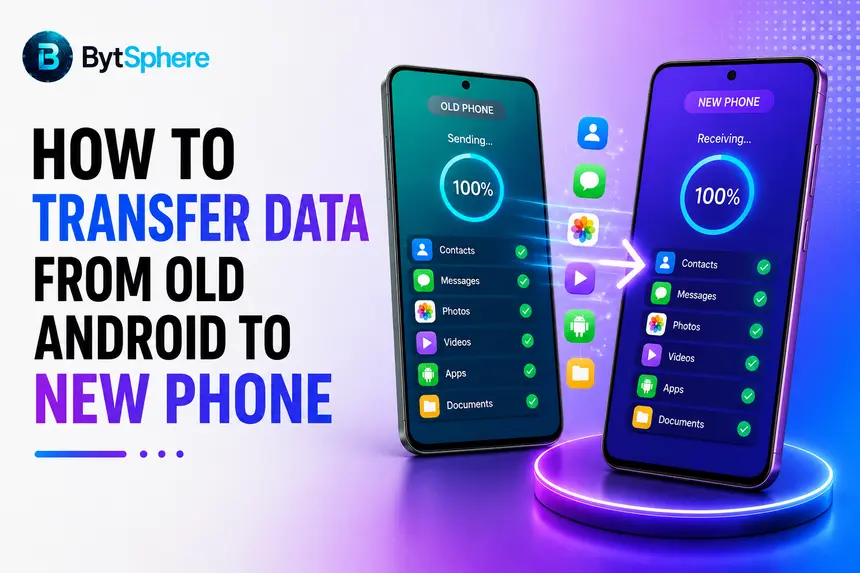
New phone excitement lasts about ten minutes — right up until you realise your contacts, photos, apps, and years of WhatsApp chats are all still sitting on your old device. The good news is that moving between two Android phones is one of the easiest transfers in mobile tech, with Google and Samsung both building genuinely solid tools directly into the setup process.
📋 Table of Contents
- Before You Start: Quick Checklist
- Method 1: Google's Built-In Transfer (During Setup)
- Method 2: Samsung Smart Switch
- Method 3: Restore from a Google Backup
- Don't Forget WhatsApp — It's a Separate Step
- Already Set Up Your New Phone? Here's What to Do
- Third-Party Apps If Built-In Methods Don't Work
- What Usually Doesn't Transfer Automatically
- Common Problems & Fixes
- Frequently Asked Questions
Before You Start: Quick Checklist
- Charge both phones to at least 50% battery before starting
- Connect both phones to Wi-Fi — most transfer methods need an active internet connection
- Know your Google Account email and password — this is what most transfers are built around
- If using a cable method, have a USB-C cable or adapter that fits both phones
- Don't insert your SIM card into the new phone until the transfer is fully complete, to avoid interruptions mid-process
Method 1: Google's Built-In Transfer (During Setup)
This is the method Google designed to work across virtually any Android brand — Samsung, Tecno, Infinix, Xiaomi, Google Pixel, and more.
- Turn on your new Android phone — the setup screen will prompt you to connect an old device
- On your old phone, when prompted to enter a PIN, do so, then open the Google app and search "set up my device" if it doesn't appear automatically
- When you see "Get started," tap Next
- Confirm the shapes and numbers match on both screens, then tap Next to pair the devices
- If prompted, choose to connect via cable (recommended) for faster, more reliable transfer, or wirelessly if you don't have a compatible cable
- Sign in with your Google Account when prompted — this is strongly recommended, as it's what allows the most data to transfer
- Choose exactly which apps and data you want to copy — contacts, photos, apps, messages, and more
- Tap Copy and wait for the transfer to complete — you'll see a confirmation message when it's done
Method 2: Samsung Smart Switch
If you're moving to (or from) a Samsung Galaxy phone, Smart Switch is Samsung's own dedicated transfer tool — pre-installed on most Galaxy devices and free to download for any other Android brand.
- Make sure Smart Switch is installed on both phones — check Settings → Accounts and Backup on newer Samsung devices, or download it free from the Play Store on non-Samsung phones
- Open Smart Switch on your new phone and tap "Bring data from old device"
- On your old phone, open Smart Switch and tap "Send data" → Wireless
- On your new phone, tap "Receive data" → Galaxy/Android → Wireless
- Tap Allow on the old device to complete the connection
- On your new phone, choose exactly which content you want to move, then tap Transfer
- Once finished, tap Close — you're done
📱 You Might Also Like
Method 3: Restore from a Google Backup
If you no longer have access to your old phone at all — lost, stolen, or already sold — you can still recover most of your data as long as it was backed up to your Google Account beforehand.
- Turn on your new phone and begin setup
- Connect to Wi-Fi and sign in with the same Google Account used on your old phone
- When prompted, choose to restore data from an old device rather than setting up as new
- Select which Google One backup you'd like to restore from, if more than one is available
- Choose the specific types of data you want restored, then tap Restore
Don't Forget WhatsApp — It's a Separate Step
This trips up a lot of people: standard Android-to-Android transfer methods generally do not automatically restore your WhatsApp chats as part of the general "apps and data" copy. WhatsApp handles its own backup and restore process separately, through the cloud.
- On your old phone, before switching, open WhatsApp → Settings → Chats → Chat Backup and make sure a backup is created and current
- On your new phone, install WhatsApp from the Play Store and sign in with your same phone number
- When prompted, tap Restore to pull your chat history and media back from the backup
Already Set Up Your New Phone? Here's What to Do
If you've already gone through setup and skipped the transfer step, you have two realistic options — neither requires starting completely from scratch.
- Samsung Smart Switch works after setup too — unlike the general Google transfer, Smart Switch can still be run manually at any time via Settings → Accounts and Backup → Smart Switch → Bring data from old device, even if your phone is already in daily use
- Restore a Google One backup manually for specific data types like contacts and photos, without needing a full device reset — Google Photos and Google Contacts sync independently of the initial setup flow
Third-Party Apps If Built-In Methods Don't Work
If the official tools aren't cooperating, or you're transferring between very different Android brands with compatibility hiccups, third-party apps fill the gap.
- Send Anywhere / Zapya (free, offline): Both apps create a local Wi-Fi Direct connection between phones without needing internet or a cable, transferring files, photos, and folders directly device-to-device
- MobileTrans (paid, most comprehensive): A desktop-based tool supporting transfer of up to 18 data types — apps, contacts, photos, videos, SMS, call history, and more — between over 6,000 device models, including cross-brand and even Android-to-iPhone transfers
What Usually Doesn't Transfer Automatically
- WhatsApp and other messaging app chats — these need their own separate backup/restore process (see Section 5)
- App login sessions — most apps themselves redownload automatically, but you'll usually need to log back into each one individually
- Some brand-specific settings — features unique to your old phone's manufacturer (custom themes, specific camera settings) may not carry over to a different brand's phone
- Locally stored files not backed up to cloud — anything saved only in local storage and never synced to Google Photos, Google Drive, or similar, won't transfer unless you manually copy it via cable or a transfer app
Common Problems & Fixes
- Transfer option doesn't appear during setup: Make sure both phones are connected to Wi-Fi and that you haven't already completed setup on the new phone — most built-in transfer prompts only appear once, at the very start.
- Cable connection isn't recognised: Confirm the cable actually fits both devices — a mismatched or damaged cable is one of the most common causes of a stalled transfer. Try the wireless option instead if the cable keeps failing.
- Transfer seems stuck for a long time: Large photo and video libraries can genuinely take from 30 minutes up to a few hours over Wi-Fi. Keep both phones on charge and close together, and avoid interrupting the process.
- Some apps are missing after transfer: The app list itself usually transfers, but the actual app files need to redownload from the Play Store in the background — check your internet connection and allow some time for downloads to finish.
- WhatsApp chats missing on the new phone: Confirm Chat Backup was switched on and recent on your old phone before you signed into WhatsApp on the new one. If it wasn't, unfortunately that history typically cannot be recovered.
Which method worked best for you? Drop a comment below and let other BytSphere readers know.
Stay tuned to BytSphere for more practical tech how-tos made for Nigerians.
Frequently Asked Questions
Do I need an internet connection to transfer data between two Android phones?
Usually yes for the standard built-in Google transfer method, which recommends connecting both devices to Wi-Fi. However, if you use a cable connection or an OTG cable, or Samsung's Smart Switch via USB-C, these methods can work fully offline without needing internet access at all. Offline third-party apps like Send Anywhere and Zapya also work without internet by creating a direct Wi-Fi connection between the two phones.
Will my WhatsApp chats transfer automatically when I move to a new Android phone?
Not automatically as part of the general data transfer — WhatsApp handles its own backup and restore separately. Before switching phones, make sure Chat Backup is turned on and current in WhatsApp Settings → Chats → Chat Backup on your old phone. Then, when you install WhatsApp on your new phone and sign in with the same number, you'll be prompted to Restore your chat history from that backup. If backup wasn't enabled beforehand, your chat history typically cannot be recovered.
Can I transfer data if I've already set up my new Android phone?
Yes, though with some limitations. Samsung's Smart Switch can be run manually at any time after setup via Settings → Accounts and Backup → Smart Switch, even on a phone that's already in daily use — this is a key advantage over Google's general transfer tool, which usually only appears once during initial setup. You can also manually restore specific data types like contacts and photos through Google's own sync services without needing a full factory reset. Pixel 9 and newer devices additionally support "Android Switch" even after setup is complete.
What is the fastest way to transfer a lot of photos and videos between Android phones?
A direct cable connection (USB-C to USB-C) is generally the fastest and most reliable method, since it avoids potential Wi-Fi speed limitations. Samsung Smart Switch supports this directly, as does Google's built-in setup transfer. If you don't have a compatible cable, offline apps like Send Anywhere and Zapya use Wi-Fi Direct for a fast local transfer without needing mobile data or a cable, though free versions may have file size or speed limits. For very large libraries (many gigabytes), a desktop tool like MobileTrans connected via USB can also handle bulk transfers efficiently.
What happens if I lost my old phone and never backed it up?
If Google backup (Settings → Google → Backup) was never enabled on your old phone before you lost access to it, unfortunately there is no way to restore data that was never backed up anywhere. This applies to contacts, app data, and settings that rely on this specific backup. However, anything that syncs to separate Google services independently — like Google Photos (if photo backup was on) or Google Contacts — may still be recoverable by simply signing into the same Google Account on your new phone, since those sync continuously rather than relying on the general device backup.
Does Samsung Smart Switch work if my old phone is not a Samsung?
Yes. While Smart Switch is Samsung's own tool and is optimised specifically for Samsung-to-Samsung transfers, it also supports migrating data from other Android brands — including Google Pixel, Motorola, OnePlus, Xiaomi, and more — to a new Samsung Galaxy device. If your old phone isn't a Samsung, simply download Smart Switch for free from the Google Play Store on that device before starting the transfer process.