
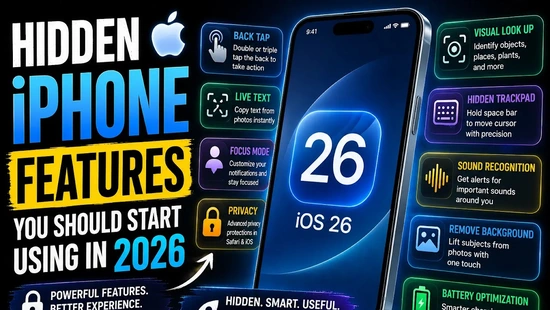
Most people use their iPhone every single day without realizing how many powerful features are quietly hidden inside iOS. For many Nigerian iPhone users, the phone is mainly used for WhatsApp, Instagram, taking photos, and watching videos — but modern iPhones are far more capable than that.
📋 Table of Contents
- Back Tap — Turn the Apple Logo Into a Secret Button
- Live Text — Copy Text Directly From Photos
- Focus Mode — More Powerful Than You Think
- Visual Look Up — Identify Anything With Your Camera
- Hidden Trackpad Mode — Edit Text Like a Pro
- Sound Recognition — Your iPhone Listens For You
- Safari Privacy Features Most People Ignore
- Remove Photo Backgrounds Instantly
- Battery Charging Optimization
- Frequently Asked Questions
Apple continuously adds smart productivity tools, privacy controls, AI-powered features, and useful shortcuts into every iOS update. The problem is that most of these features are buried deep in settings menus that average users never explore.
Here are 9 hidden iPhone features you should start using right now in 2026 — to improve your productivity, privacy, battery life, and overall experience.
1. Back Tap — Turn the Apple Logo Into a Secret Button
One of the most underrated iPhone features is called Back Tap. Most users never discover it because Apple hides it deep inside Accessibility settings. But once you find it, you'll wonder how you ever lived without it.
Back Tap lets you double-tap or triple-tap the back of your iPhone — on the Apple logo area — to instantly trigger any action you choose. It's like having a secret button built into the back of your phone that no one else knows about.
You can configure it to do things like:
- Take a screenshot instantly without pressing two buttons at once
- Open the camera directly from anywhere
- Turn on the flashlight with two taps
- Lock the screen quickly
- Launch any app or Shortcut you choose
- Activate Siri, scroll up/down, or control volume
- Go to Settings → Accessibility → Touch
- Scroll to the bottom and tap Back Tap
- Tap Double Tap and choose your preferred action (e.g. Screenshot)
- Tap Triple Tap and assign a second action (e.g. Flashlight or Camera)
2. Live Text — Copy Text Directly From Photos and the Camera
Modern iPhones can now recognize and extract text from any image automatically. This feature is called Live Text, and it's genuinely impressive. Point your camera at anything with writing on it — a receipt, a poster, a business card, a whiteboard, a book page — and your iPhone will instantly recognize the text and let you copy, translate, search, or call the number directly.
For Nigerian students, business owners, and content creators, this is a massive time-saver. Instead of manually typing information from receipts, handwritten notes, or printed documents, you can extract the text in seconds.
- Open your Camera app and point it at any text
- A yellow frame will appear around recognized text
- Tap the Live Text icon (looks like lines with a cursor) in the bottom right corner
- Select the text you want → tap Copy, Translate, Search, or call a phone number directly
3. Focus Mode — Far More Powerful Than Just "Do Not Disturb"
Most iPhone users think Focus Mode is just a fancier version of Do Not Disturb. That's a massive misunderstanding. Focus Mode has evolved into a complete productivity system inside iOS that can completely transform how your iPhone behaves depending on what you're doing.
You can create separate Focus profiles for Work, Sleep, Driving, Gym, Personal Time — and each one can have completely different home screens, notification filters, visible apps, lock screen styles, and even automatic activation schedules.
Imagine: when you activate Work Focus, your phone automatically shows only your work apps, hides social media, silences everyone except your boss and important contacts, and switches to a clean, distraction-free home screen. When Work Focus ends at 6pm, everything returns to normal automatically.
- Go to Settings → Focus
- Tap the + button to create a new Focus profile (Work, Study, Personal, etc.)
- Choose which contacts and apps can send you notifications during this Focus
- Tap Customize Screens to assign a specific home screen and lock screen
- Set an automation schedule so it activates automatically at set times or locations
4. Visual Look Up — Identify Plants, Animals, Landmarks and More
Apple quietly built AI-powered object recognition directly into the Photos app. It's called Visual Look Up, and it can identify almost anything you photograph — plants, animals, dog breeds, landmarks, food dishes, artworks, and even symbols.
This is incredibly useful in everyday Nigerian life. See an unfamiliar plant in someone's compound? Photograph it and identify it instantly. Spot a dog breed you don't recognize? Visual Look Up will tell you the exact breed. Visit a landmark? It'll give you full information about it.
- Open any photo in your Photos app
- Look for the info button (ⓘ) at the bottom of the screen — if it has stars around it, Visual Look Up is available for that photo
- Tap the ⓘ button and scroll down to see the Look Up result
- Alternatively, tap and hold the subject in any photo — a menu will appear with a "Look Up" option
5. Hidden Trackpad Mode — Move Your Cursor With Precision
Editing text on a touchscreen can be incredibly frustrating — trying to tap exactly where you want the cursor to land, getting it wrong repeatedly, and accidentally selecting the wrong word. Apple solved this problem with a hidden trackpad feature that most iPhone users still don't know exists.
By pressing and holding the spacebar on the iPhone keyboard, the entire keyboard surface transforms into a virtual trackpad. You can then glide your finger across it to move the text cursor smoothly and precisely to exactly where you need it — like a laptop trackpad, but on your phone.
- Open any app where you're typing — WhatsApp, Notes, Gmail, etc.
- Tap somewhere to bring up the keyboard
- Press and hold the spacebar — the keyboard keys will fade and the surface becomes a trackpad
- Slide your finger to move the cursor precisely to any position in your text
- To select text: press and hold briefly, then drag to highlight
6. Sound Recognition — Your iPhone Listens So You Don't Have To
Sound Recognition is a hidden accessibility feature that turns your iPhone into a sound detector. It listens in the background for specific sounds and sends you a notification the moment it hears them — even if your phone is on silent or you're wearing earphones.
Sounds it can detect include: doorbells, fire alarms, smoke alarms, crying babies, barking dogs, knocking, sirens, water running, and more. For a busy Nigerian household, this is genuinely useful — especially if you're working with earphones in and can't hear when someone is at the gate or a baby starts crying in another room.
- Go to Settings → Accessibility → Sound Recognition
- Toggle Sound Recognition ON
- Tap Sounds and select the sounds you want your iPhone to detect
- Your iPhone will now send a notification banner whenever it hears one of the selected sounds
7. Safari Privacy Features Most iPhone Users Completely Ignore
Most Nigerians don't realize how much tracking happens every time they browse the internet — advertisers, data brokers, and websites are constantly collecting information about your browsing habits, location, and preferences. Safari on iPhone has powerful built-in privacy protections that block most of this silently in the background.
- Intelligent Tracking Prevention — automatically blocks cross-site trackers that follow you around the web
- Private Relay (iCloud+) — hides your IP address so websites can't track your location
- Hide My Email — generates random email addresses when signing up for websites so your real email stays private
- Password Monitoring — alerts you if your saved passwords have been found in a data breach
- Privacy Report — shows exactly how many trackers Safari has blocked on every website you visit
- Open Safari → tap the AA icon in the address bar → tap Privacy Report to see what's been blocked
- Go to Settings → Safari → Privacy & Security to review and enable all privacy settings
- Enable "Prevent Cross-Site Tracking" and "Hide IP Address" if not already on
8. Remove Photo Backgrounds Instantly — No App Needed
What previously required apps like Adobe Photoshop or Remove.bg can now happen directly inside your iPhone's Photos app in seconds. iOS lets you lift any subject — a person, an object, a product — cleanly out of any photo with just a tap and hold, instantly removing the background.
This is perfect for Nigerian content creators, small business owners who need product photos with clean backgrounds, social media managers making post graphics, or anyone who wants to create fun stickers from their photos.
- Open any photo in your Photos app
- Tap and hold on the subject (person, object, or animal) you want to extract
- A glowing outline will appear around the subject — release when you see it
- Tap "Copy" from the menu that appears
- Paste it into any app — WhatsApp, Instagram, Notes, Canva, etc. — the background is already removed
9. Battery Charging Optimization — Protect Your Battery Long-Term
Battery health is one of the biggest concerns for iPhone users in Nigeria — especially since iPhone battery replacements cost between ₦30,000 and ₦60,000 at specialist shops. Apple's Optimized Battery Charging feature helps prevent premature battery degradation so your battery stays healthier for longer.
Instead of charging aggressively to 100% all night (which causes battery wear), the iPhone learns your daily charging habits and deliberately slows charging after 80%, only completing the final 20% just before you typically wake up. This dramatically reduces the heat and stress that degrades lithium batteries over time.
- Go to Settings → Battery → Battery Health & Charging
- Make sure "Optimized Battery Charging" is toggled ON
- Also check your current Battery Health percentage — anything above 80% is healthy; below 80% means a replacement is worth considering
📱 You Might Also Like
Final Thoughts
Apple continuously adds powerful tools into every iPhone, but the best features are often the ones buried deepest in the settings. The difference between someone who gets the most out of their iPhone and someone who doesn't is almost always just knowledge — not the model of phone they own.
You don't need to buy a newer iPhone to unlock better performance, productivity, or privacy. The features above are already sitting inside the iPhone you have right now, waiting to be discovered.
Start with Back Tap and Hidden Trackpad — they're the quickest wins and will immediately make your daily phone use smoother. Then explore Focus Mode and Battery Optimization for longer-term benefits.
Which of these features surprised you the most? Drop a comment below — and share this with every iPhone user you know in Nigeria who might be missing out!
Subscribe to BytSphere for more daily tech tips made for Nigerians.
Frequently Asked Questions
Which iPhones support Back Tap?
Back Tap is available on iPhone 8 and later, running iOS 14 or above. This includes iPhone 8, 8 Plus, X, XR, XS, XS Max, 11 series, 12 series, 13 series, 14 series, 15 series, and 16 series. If your iPhone is one of these models and is updated to at least iOS 14, Back Tap is already on your phone right now.
Does Live Text work on Nigerian languages like Yoruba, Igbo, or Hausa?
Currently, Live Text works best with English, and also supports French, German, Spanish, Chinese, Japanese, Korean, Portuguese, Italian, and Ukrainian. Nigerian languages like Yoruba, Igbo, and Hausa are not yet officially supported. However, Live Text will still work on printed English text on Nigerian receipts, signs, documents, and business cards — which covers most everyday use cases.
Will Sound Recognition drain my iPhone battery?
Sound Recognition uses the microphone continuously, which does have a small impact on battery life. Apple has optimized it to be as efficient as possible, but you may notice a slight reduction in battery endurance if you enable many sound types at once. The best approach is to only activate the specific sounds you genuinely need — for example, just "Doorbell" and "Baby Crying" — rather than enabling all available sounds.
Does Background Removal work on all photos?
Background Removal works best when there is a clear distinction between the subject and the background — for example, a person standing against a plain wall, or a product on a flat surface. It works on iPhone XS and newer running iOS 16+. It may struggle with complex backgrounds, subjects that blend into the background, or low-quality photos. For best results, ensure good lighting and a reasonably clear contrast between subject and background.
How do I check my iPhone battery health?
Go to Settings → Battery → Battery Health & Charging. You'll see your Maximum Capacity percentage. A healthy iPhone battery should be above 80%. If yours is below 80%, Apple recommends a battery replacement. In Nigeria, genuine Apple battery replacements are available at authorized service centres in Lagos and Abuja, or through reputable specialist iPhone repair shops — budget between ₦30,000 and ₦60,000 depending on your model.
Can I use these features on an older iPhone like iPhone X or XR?
Most features on this list work on older iPhones as long as they're running a supported iOS version. Back Tap, Focus Mode, and Hidden Trackpad work from iPhone 8 onwards on iOS 14+. Live Text and Visual Look Up require iPhone XS or newer on iOS 15+. Background Removal requires iPhone XS or newer on iOS 16+. Sound Recognition works from iPhone 6s onwards on iOS 14+. Update your iOS to the latest version to ensure maximum compatibility.